

An account manager has a client visit at 9:30. At 9:20 she is in a café, opening the CRM on her laptop, clicking through three deals, scrolling notes and trying to remember who the new finance contact is. Ten minutes is rarely enough, so many meetings start with "remind me where we are". If you want to connect Claude to your CRM, meeting preparation is one of the most useful first jobs to give it: the AI assistant reads the account, sums it up in plain language and logs the outcome after the call.
This playbook shows how to set that up with Ostrata, the AI-piloted CRM for SMBs, and its MCP connector. The company used as an example is an illustrative scenario, not a customer story: an eight-person French managed IT services provider whose two account managers visit clients on site every week.
Why connect Claude to your CRM through MCP
The Model Context Protocol (MCP) is an open standard for connecting AI applications to external systems. Its official introduction compares it to a USB-C port for AI: one standard way for tools such as Claude or ChatGPT to reach data and actions. For a CRM, that means the assistant no longer works from what you paste into the chat. It queries the live records itself.
The Ostrata MCP connector exposes 29 tools covering discovery, records, schema, import, attachments and notes. For meeting prep, a handful matter:
- search_records and get_record to find the company, its deals and contacts.
- list_related_records to pull the child records linked to an account.
- query_notes to read the notes on a record, newest first.
- create_note to save the meeting outcome.
- draft_email_to_contact and send_email to prepare a follow-up, sent from the connection owner's Gmail.
Ostrata's home page lists Claude, ChatGPT and other MCP clients as compatible. This playbook uses Claude because the setup is documented step by step in the Ostrata API documentation.
Step 1: Create your personal MCP connection in Ostrata
Each member creates their own connection; there is no shared team key. In our scenario, each account manager does this once:
- In Ostrata, open Personal space → MCP and create a connection.
- Copy the credentials straight away. The help center notes that the omk_ key and the OAuth Client ID (omc_…) and Client Secret (ocs_…) are shown only once.
- Store them in your password manager, not in a shared document.
Who is affected by this setup:
- Account managers and reps: create their own connection; the assistant sees exactly what their permission profile allows in Operations, no more.
- Admins: keep permission profiles up to date, because a profile change applies on the next MCP request. Import tools require a workspace-admin profile.
- Managers: get reliable attribution, since records created through MCP are credited to the member who owns the connection.
Each connection is owned by the member and can be revoked: if a key is ever exposed, revoke it and create a new one.
Step 2: Add Ostrata as a custom connector in Claude
On Claude desktop and web, Ostrata uses OAuth. The steps below combine the Ostrata documentation and Claude's help article Get started with custom connectors using remote MCP:
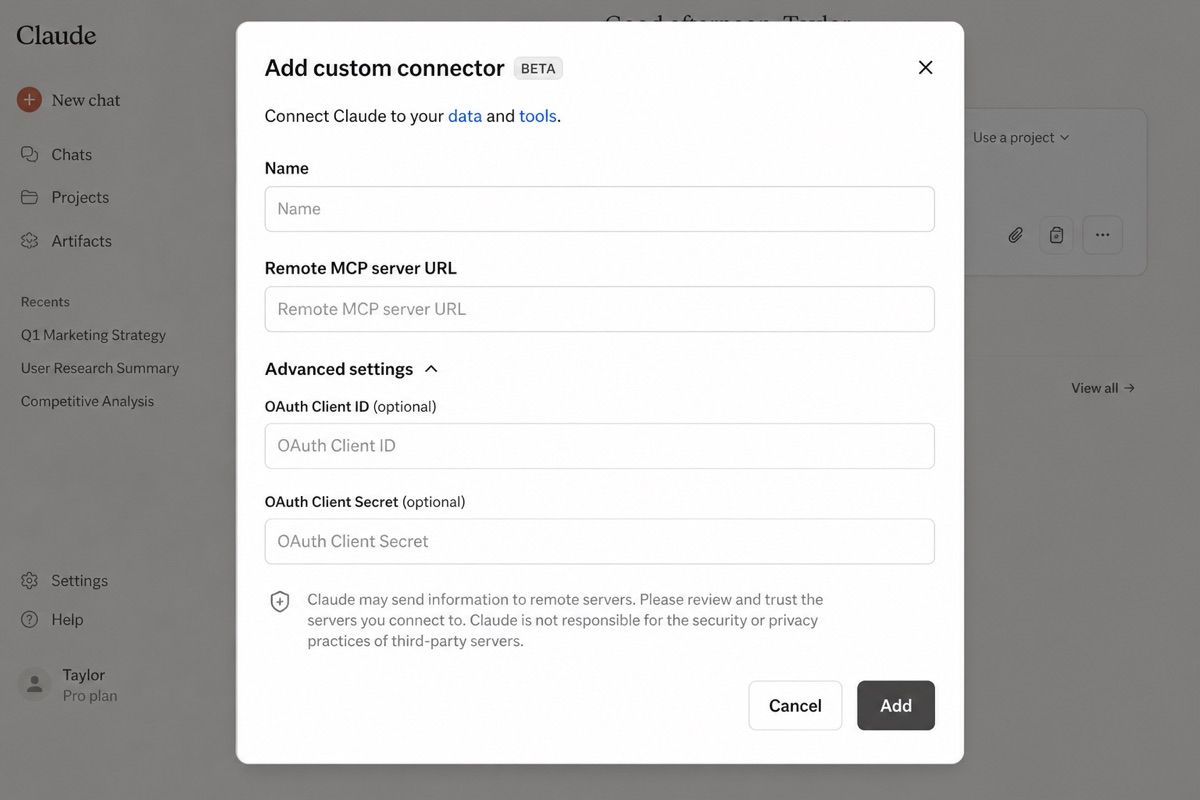
- In Claude, open the Connectors settings and choose Add custom connector.
- Enter a name (for example "Ostrata") and the remote MCP server URL https://ostrata.io/api/mcp.
- Open Advanced settings and paste the OAuth Client ID and Client Secret from Personal space → MCP.
- Click Add, then sign in to Ostrata in the browser window Claude opens. That login ties the session to your workspace member.
- In a new conversation, click +, open Connectors and make sure Ostrata is switched on.
Plan details matter here. Claude's help center states that custom connectors are available on Free, Pro, Max, Team and Enterprise plans, but Free users are limited to one custom connector. On Team and Enterprise plans, an Owner adds the connector in organization settings, then each member connects individually.
Developers who prefer Claude Code can use the omk_ key directly as a Bearer token:
```
claude mcp add --transport http ostrata https://ostrata.io/api/mcp --header "Authorization: Bearer omk_YOUR_KEY"
```
If Claude Code returns a 401 error, the Ostrata help center lists the usual causes: a wrong Bearer prefix, a revoked key or a non-HTTPS URL.
Step 3: Run a five-minute meeting prep with Claude
Ostrata's own customer meeting prep use case describes a five-minute routine: find the company, check the stage and last note on each open deal, review recent changes, and spot gaps such as a missing legal or champion contact. With the connector on, the account manager asks Claude for the same thing in one message, for example:
"Using Ostrata, prepare a brief for my meeting with [company]: open deals with stage and amount, the last three notes, linked contacts with their roles, and anything missing for a decision."

Claude then searches the records, reads the notes and returns a short brief. In our scenario, the account manager checks three things before trusting it:
- Coverage: does the brief name a decision-maker and a finance contact, or only the IT manager?
- Freshness: is the last note older than the last meeting invite? If so, ask what changed.
- Numbers: for totals, Claude should rely on exact counts. The Ostrata documentation recommends count_records rather than search_records for "how many" questions, because search results are capped at 50 per page.
Keep the human in the loop. The brief is a summary of what is in the CRM; if the notes are thin, the brief will be thin too.
Step 4: Log the outcome and follow up from the same conversation
The value of the routine comes after the meeting. On the train back, the account manager types a few lines into the same Claude conversation: decisions, objections, next step and date. She then asks Claude to save them as a note on the deal and to draft a follow-up email to the contact.

A few rules from the Ostrata notes documentation shape this step:
- Notes cannot be edited after posting. Add a new note to correct one, so read Claude's draft before it saves.
- Notes follow the record. Anyone who can open the record reads them; anyone who can edit it can add or delete them.
- Meeting tools post System notes. Notes from notetakers, integrations or the API appear as System, so they are not attributed to a teammate.
For email, draft_email_to_contact prepares the message and send_email sends it from the connection owner's Gmail. A sensible team rule is "draft only" for the first weeks, and Claude asks for approval before running a tool unless you choose Allow always. Claude's help center recommends using that option only for tools you trust to run unsupervised, and disabling write tools when you use Research, which can call connector tools without approval.
What to do now: a rollout checklist
For a small sales team, a two-week rollout is realistic:
- Day 1: confirm each rep's permission profile in Ostrata covers Contacts, Companies, Deals and notes, and nothing they should not see.
- Day 2: each rep creates a personal MCP connection and adds the custom connector in Claude.
- Days 3–5: test the prep prompt on three real upcoming meetings and compare the brief with what the rep knows.
- Week 2: add the post-meeting step: note first, follow-up email as a draft.
- End of week 2: agree on a short note template (decision, objection, next step, date) so future briefs stay useful.
Before and after, in short:
- Before: ten minutes of clicking between records, notes forgotten in a notebook, follow-ups written from memory the next day.
- After: a brief in one message, the outcome saved as a note on the train, and a follow-up draft ready before the rep is back at the office.
Two practical points for French buyers: Ostrata states that records are hosted in the EU and operated from Paris, and the Ostrata pricing page lists a single plan that includes MCP, from €17.10 per seat per month excluding VAT on yearly billing, with a 30-day trial for one seat.
Connecting Claude to your CRM is not about adding another chat window. It turns meeting preparation and follow-up into a routine that reads and writes the same records the whole team uses, within each person's permissions. Start with one use case, keep write actions under review, and invest in good notes: they are what make the next brief worth reading. If your data still lives in spreadsheets, our Excel to CRM migration playbook is the right first step, and our guide to capturing website leads in Ostrata covers the inbound side. For help designing permission profiles, prompts and note templates, our Ostrata implementation services and our AI agent consulting team can set it up with you.