

A new sales manager joins on Monday. To give her the right access, the admin clones a profile, adds four permission sets one by one, forgets the reports permission, and fixes it on Wednesday after a support ticket. Multiply that by every hire, team change and departure, and user access becomes one of the most time-consuming parts of running Salesforce. Salesforce permission set groups solve most of this: you bundle permission sets by job, assign one group, and control the exceptions. This guide gives five practical tips you can apply in Setup today.
What Salesforce permission set groups change
A permission set grants access to objects, fields, apps and system permissions. A permission set group bundles several permission sets around a job function, such as "Sales Manager" or "Service Agent". As the Trailhead unit Get Started with Permission Set Groups explains, the group includes every permission of its member sets, and one permission set can belong to several groups.
In practice, that means:
- One assignment per persona instead of four or five permission sets per user.
- Small, reusable building blocks: a "Reports and Dashboards" set can sit in the sales, service and finance groups at the same time.
- Least privilege by design: profiles can stay minimal, while access is added by groups.
- Automatic recalculation: when you edit a permission set, every group that contains it is recalculated. Until the recalculation finishes, users keep the permissions from the last completed one.
Tip 1: Build groups around personas, not around people
The most common mistake is one group per user, which simply moves the mess somewhere else. Start from job functions instead.
- List your personas: for example sales rep, sales manager, service agent, marketing user, finance reader.
- For each persona, list the tasks they perform, not the objects they touch.
- Create small permission sets, each covering a few related tasks (for example "Manage Quotes" or "Export Reports").
- In Setup, search Permission Set Groups in Quick Find and click New Permission Set Group. Give it the persona's name.
- Open Permission Sets in Group, click Add Permission Set, select the sets, then click Add and Done.
- Check that the group status shows Updated, then review the Combined Permissions before assigning anyone.
The Trailhead unit Create a Permission Set Group walks through these screens. One warning from the same unit: if a user's license does not support a permission in the group, the assignment fails. Check licenses first, especially for platform or partner users.
Tip 2: Use a muting permission set for the exceptions
Sometimes a persona needs almost everything in a group, minus one or two permissions. Instead of creating a near-copy of a permission set, mute what you do not want. The Trailhead unit Mute Permissions in Permission Set Groups describes the steps:
- Open the permission set group and, under Permission Sets, click Muting Permission Set in Group.
- Click New, enter a label and API name, and save.
- Open the muting permission set, find the object or app setting (for example Contracts), click Edit, select the permissions to mute and save.
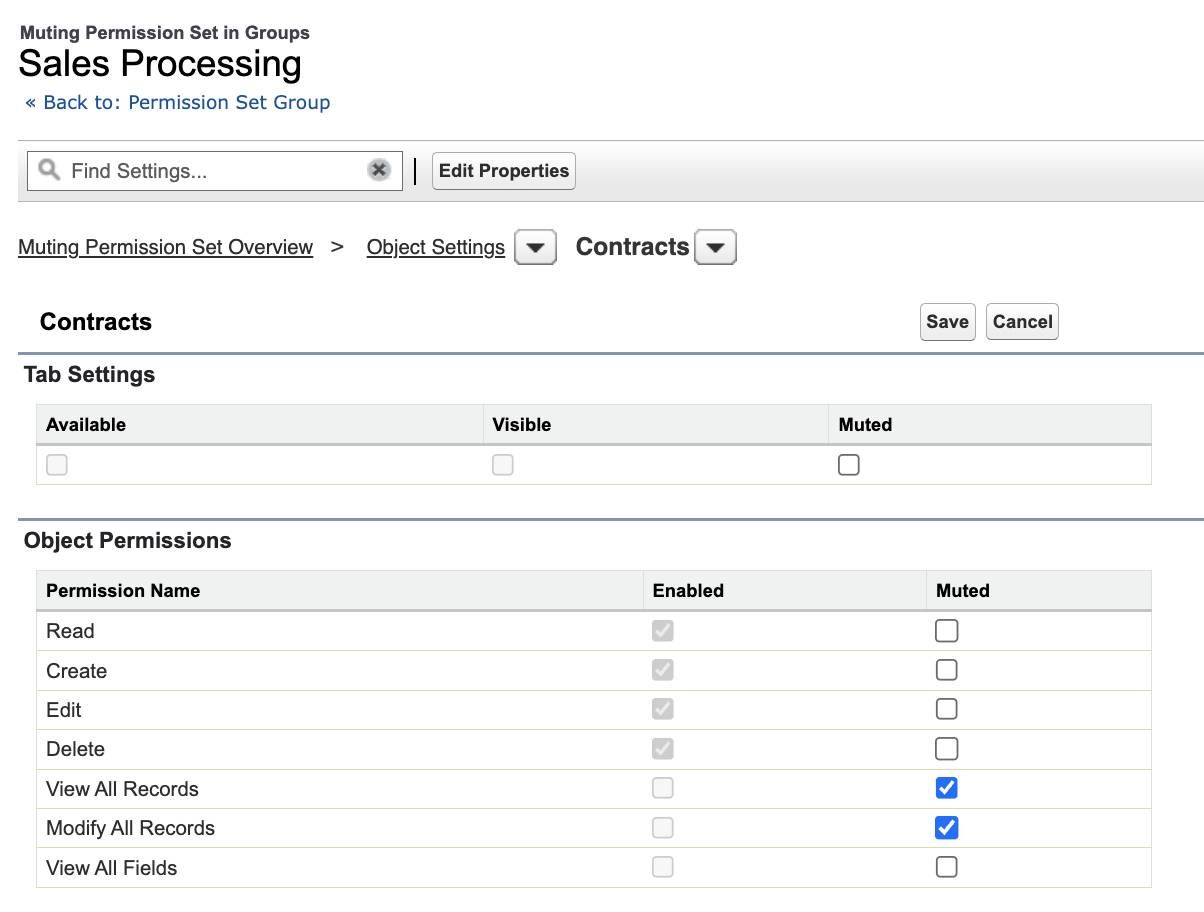
Know how muting behaves before you rely on it:
- One per group: a permission set group can have at most one muting permission set.
- Group only: muting affects users through that group. A user who gets the same permission from a profile, another permission set or another group keeps it.
- Dependencies follow: muting Read on an object also mutes Create, Edit and Delete. Read the confirmation message before saving.
Muting is ideal for a "Sales Manager – Interns" variant: same group, but without View All or Modify All on contracts.
Tip 3: Give temporary access an expiration date
Project access, holiday cover and audits are often granted "for two weeks" and never removed. Salesforce lets you put an end date on a permission set or group assignment. The Trailhead unit Get Hands-On With Permission Set Expiration gives the procedure:
- In User Management Settings, turn on Permission Set & Permission Set Group Assignments with Expiration Dates.
- Open the permission set or group, click Manage Assignments, then Add Assignment.
- Select the users and click Next.
- Choose a specific date, either a preset timeframe or a custom date, and pick a time zone.
- Click Assign.
The assignment expires at 11:59 PM on the chosen date, in the chosen time zone. A simple team rule: any access granted for a project or a replacement gets an expiration date, no exceptions.
Tip 4: Automate assignments with User Access Policies
Once your groups exist, you can stop assigning them by hand. User Access Policies grant or revoke permission set groups, permission sets, licenses, public groups and queues when a user matches criteria. According to the Trailhead unit Create a User Access Policy, the setup is:
- In User Management Settings, turn on User Access Policies.
- Open User Access Policies from Quick Find and click New User Access Policy. Enter a name, an order number and a description.
- Click Edit Criteria and add filters, such as Role equals your sales team and Active equals true. A user must meet all filters.
- Under actions, choose Grant or Revoke and select the permission set group, public group or license.
- Click Automate Policy, choose the trigger (user created, updated, or both), then Activate.
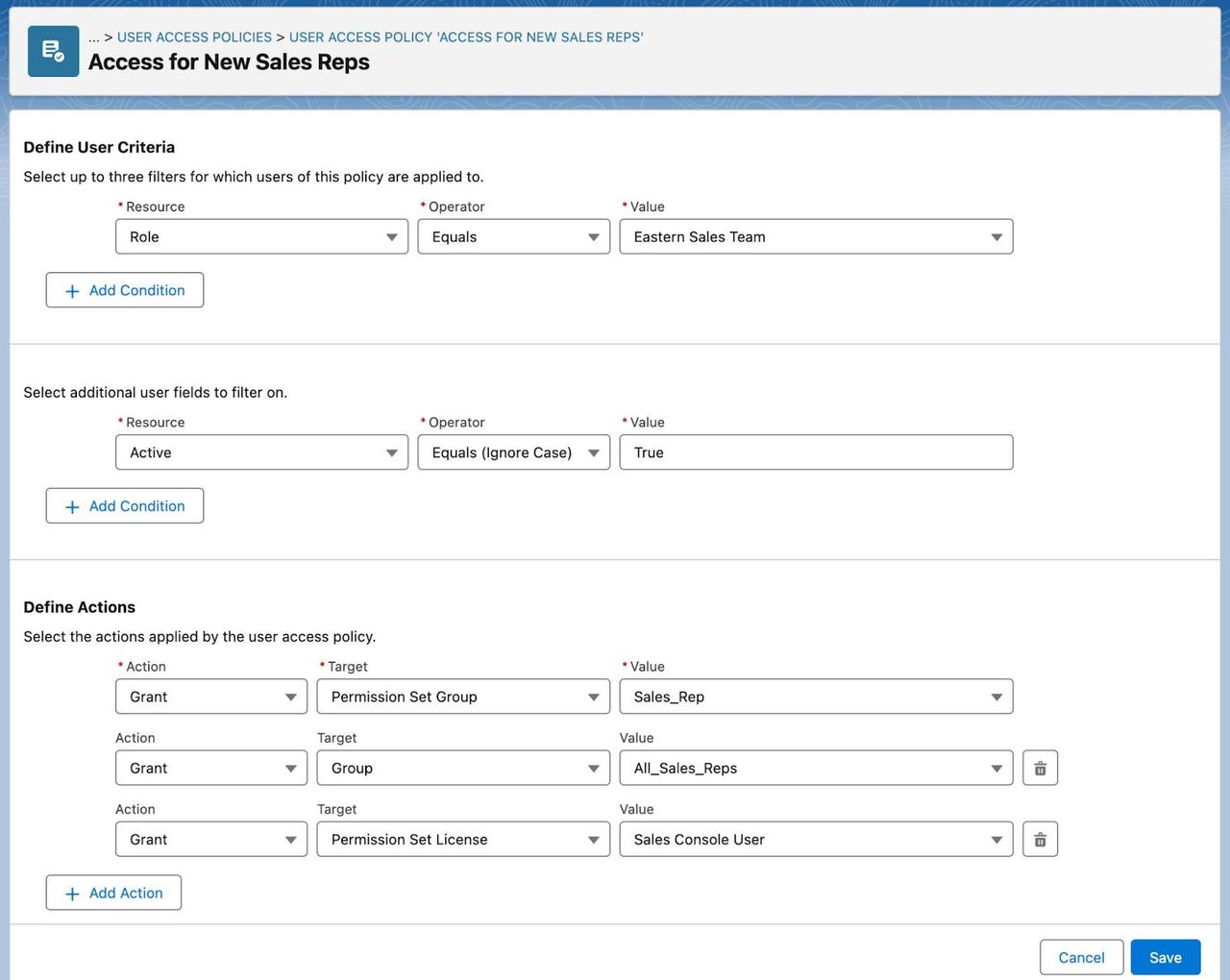
Limits worth knowing: up to three filters on profiles, roles, permission sets, licenses or groups, up to ten filters on user fields, and up to 20 actions per policy. The Salesforce Admins blog post on the future of user management notes that policies became generally available in Summer '24, with up to 200 active policies per org. Trailhead lists User Access Policies for Enterprise and Unlimited editions, so check your edition first. After activation, the policy's Recent User Access Changes tab shows which users were updated and when.
Tip 5: Review access with the summaries, not with spreadsheets
When someone asks "why can this user see that?", you no longer need to open every profile and permission set. Two read-only views do the job:
- User Access Summary: in Setup, open Users, select a user and click View Summary. It consolidates the user's permissions, object and field access, custom permissions, public groups and queues.
- Permission set and group summary: on any permission set or group, View Summary shows the object, field, user and custom permissions enabled, and which groups contain a set.

Both summaries take muting into account, so they show the access the user really has. They are also the best evidence for a quarterly access review with managers, and a natural follow-up to the profile filtering change described in our guide to Salesforce release updates before Spring '27.
What to do now: a one-week access clean-up
- Monday: export users with their profile and permission set assignments, and list the personas you really have.
- Tuesday: create or split permission sets so that each covers a few related tasks.
- Wednesday: build one permission set group per persona in a sandbox, and add muting sets for the exceptions.
- Thursday: test with real users of each persona, using View Summary to compare old and new access.
- Friday: deploy, assign the groups, add expiration dates to temporary access, and automate one persona with a User Access Policy.
Before and after, in short:
- Before: cloned profiles, four or five permission sets per user, temporary access that never ends, and no clear answer to "who can see what".
- After: one group per persona, documented exceptions, end dates on temporary access, new users configured automatically, and a summary page for every audit question.
Groups also make other controls easier to manage. A custom permission used to bypass validation rules, as shown in our Salesforce validation rules tips, can live in a dedicated permission set inside your integration user's group. And integration users deserve the same care as people, as covered in our article on Salesforce integration authentication deadlines.
Conclusion
Salesforce permission set groups turn user access from a series of one-off fixes into a model you can explain: personas, small permission sets, muting for exceptions, end dates for temporary access and policies for automation. Start with one team, measure how long onboarding takes before and after, then extend the pattern. If your org has years of cloned profiles and scattered permission sets, our Salesforce Sales Cloud consultants and our Salesforce Service Cloud team can design the access model and run the migration with you.